
Safari is one of the most-used apps on the iPhone, but many people only use its basic browsing features.
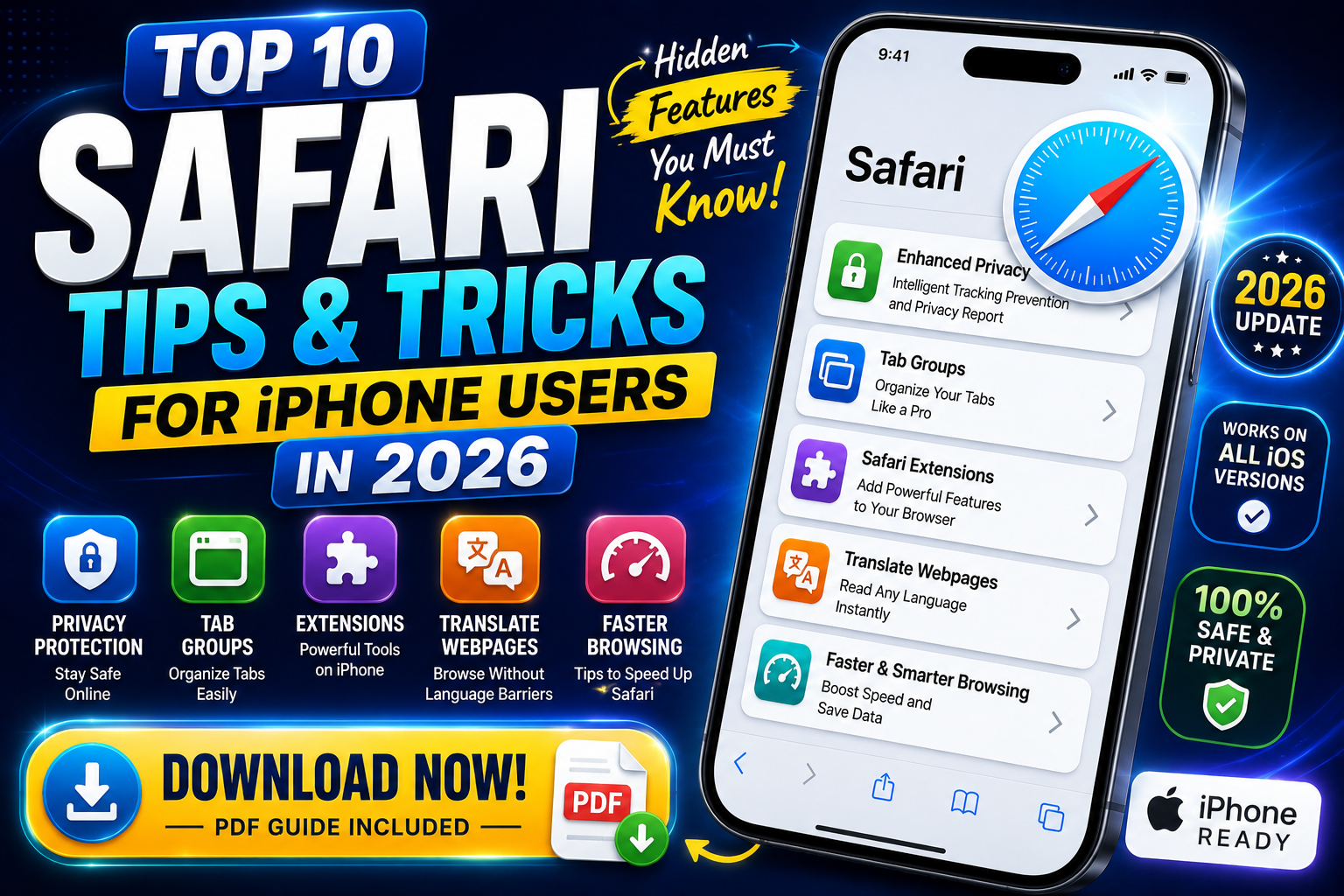
In 2026, Safari offers powerful privacy controls, tab management tools, extensions, profiles, webpage translation, and customization options.
Learning the best Safari tips for iPhone users can make everyday browsing faster and more organized.
Here are 10 useful Safari tips and tricks in 2026 that every iPhone user should try.
1. Search for Words Inside a Webpage
Reading a long article and looking for one specific word?
You don’t need to scroll through the entire page.
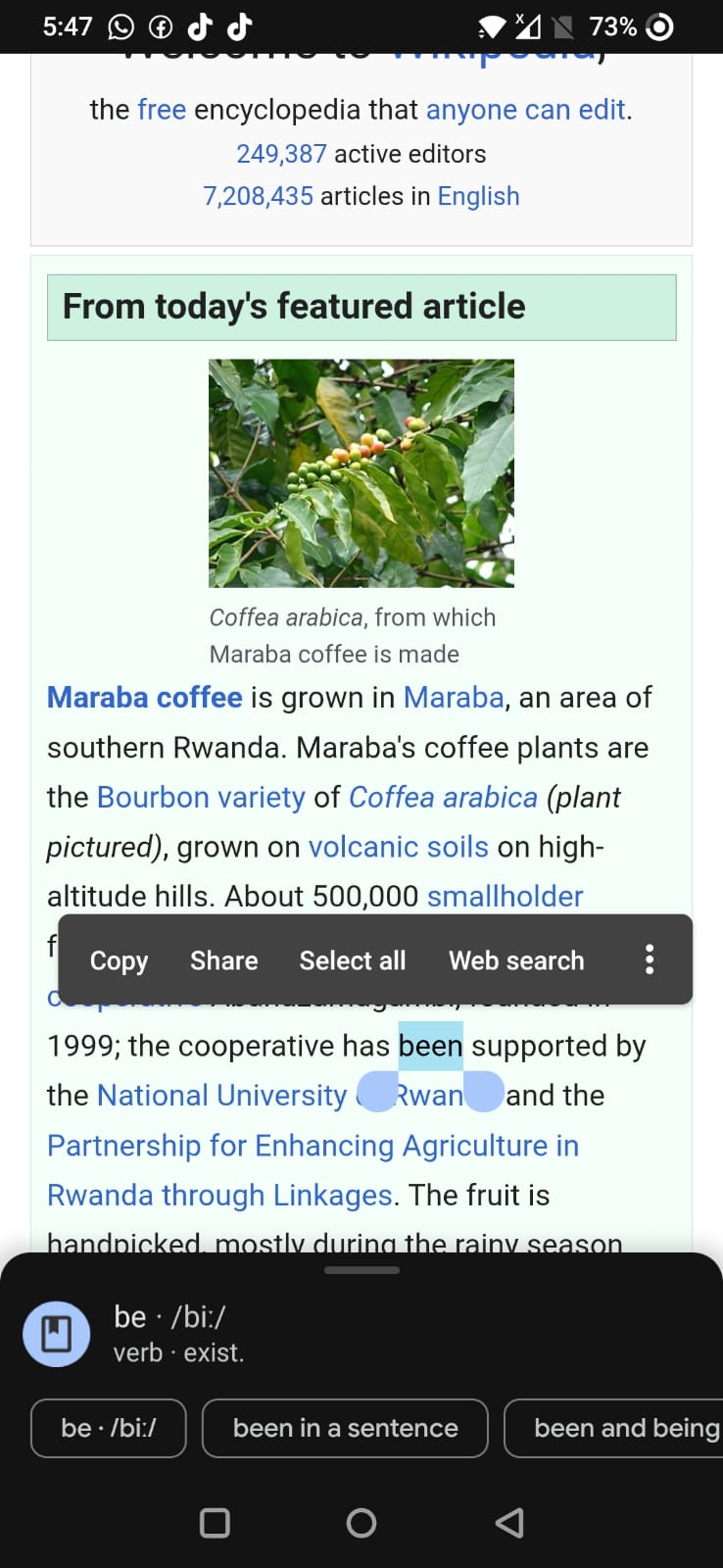
Safari lets you search for a word or phrase directly on a webpage
Open the page menu and use Find on Page. Enter the keyword you want to locate.
Safari highlights matching words, making long guides and articles much easier to search.
This is one of the simplest iPhone Safari tricks for students and researchers.

2. Create Separate Safari Profiles
Safari Profiles can help separate work and personal browsing.
You can create different profiles for activities such as Work, Personal, Shopping, or Study.
Each profile helps keep browsing activities more organized.
For example, your work research does not need to become mixed with your personal browsing routine.
Safari Profiles are particularly useful for freelancers and professionals who use one iPhone for multiple purposes.

3. Use Private Browsing for More Privacy
Private Browsing provides additional privacy protections when using Safari.
Safari does not save visited pages to your normal browsing history in the same way as regular browsing.
Apple also protects Private Browsing windows by locking them when they are not being used.
This adds another privacy layer when someone else has temporary access to your iPhone.
Private Browsing is useful for temporary searches, but it does not make you completely anonymous online.

4. Check Safari’s Privacy Report
Have you ever wondered how websites attempt to track users?
Safari includes a Privacy Report.
Apple’s Intelligent Tracking Prevention is designed to identify trackers and help prevent them from profiling or following users across websites.
The Privacy Report provides more information about known trackers Safari has encountered and blocked from tracking you across sites.
For privacy-conscious users, this is one of the best Safari privacy features to explore.

5. Organize Open Websites With Tab Groups
Opening too many Safari tabs can quickly become confusing.
Tab Groups help organize websites into collections.
You could create groups for:
“Work Research”
“Online Shopping”
“Travel Planning”
“AI Tools”
“News”
Instead of searching through dozens of random tabs, you can keep related pages together.
This simple Safari feature can dramatically improve mobile browsing organization.

6. Customize Your Safari Start Page
Your Safari Start Page does not need to look the same as everyone else’s.
Safari allows you to customize the Start Page and select which sections appear.
Depending on your settings, you can organize Favorites, Reading List, Privacy Report, and iCloud Tabs.
You can also personalize the Start Page background.
To find the options, open a new Safari tab, scroll to the bottom of the Start Page, and tap Edit.
A clean Start Page can make your favorite websites easier to access.

7. Install Safari Extensions on iPhone
Extensions are not only for desktop browsers.
Safari supports extensions on iPhone.
Extensions can add functionality and personalize the browser experience.
The right extension may help with productivity, content management, or other browsing tasks.
However, avoid installing random extensions.
Review the developer, permissions, and privacy information before giving an extension access to browsing activity.

8. Translate Webpages in Safari
Found a useful website written in another language?
Safari can translate supported webpages.
Open the webpage and check the Page menu for available translation options.
This can be useful when reading international news, travel information, tutorials, and foreign websites.
Translation availability can depend on the webpage and supported languages.
For travelers, Safari’s webpage translation feature can be extremely useful.

9. Sync Safari Tabs Across Apple Devices
If you use an iPhone, iPad, or Mac, Safari can keep browsing information available across your Apple devices through iCloud.
Open tabs, bookmarks, browsing history, and Reading List can stay up to date when you use the same Apple Account and compatible iCloud settings.
Imagine researching a topic on your iPhone.
Later, you can continue browsing on another Apple device without manually searching for every page again.
This is one reason Safari works particularly well inside the Apple ecosystem.
10. Customize Safari Search Suggestions
Safari displays search suggestions while you type.
Some users find these suggestions useful.
Others prefer a cleaner search experience.
Go to Settings > Apps > Safari and review your search settings.
Apple allows users to turn Search Engine Suggestions off.
Reviewing Safari settings is one of the easiest ways to personalize how the browser behaves on your iPhone.

How to Make Safari Better on iPhone in 2026
Start by organizing your open tabs.
Delete tabs you no longer need and create Tab Groups for important projects.
Next, customize your Start Page.
Keep your most frequently visited websites easily accessible.
Review Safari’s privacy settings and check the Privacy Report.
You should also review installed extensions and remove tools you no longer use.
Finally, keep your iPhone software updated.
Safari updates on iPhone are delivered as part of Apple’s operating system updates, so current software helps you receive the latest supported browser improvements.
Is Safari Private on iPhone?
Safari includes multiple privacy technologies.
Apple says Intelligent Tracking Prevention helps identify trackers and prevent cross-site profiling.
Private Browsing provides additional protections and can lock private windows when they are not in use.
However, no browser feature should be treated as complete online anonymity.
Websites, internet providers, account logins, and online services may still process information depending on how you browse.
Understanding the difference between browser privacy and complete anonymity is important.

Safari vs Chrome on iPhone: Which Is Better?
The best browser depends on your personal needs.
Safari is deeply integrated with Apple’s ecosystem and offers built-in privacy and synchronization features.
Chrome may appeal to users who frequently use Google’s browser ecosystem across different platforms.
For people who primarily use Apple devices, Safari’s iCloud syncing and Apple ecosystem integration can make browsing more convenient.
Instead of choosing a browser only because it is popular, consider privacy, device synchronization, extensions, and your daily workflow.
Frequently Asked Questions
What are the best Safari tips for iPhone users?
Useful Safari tips include using Tab Groups, Safari Profiles, Find on Page, Privacy Report, Private Browsing, extensions, and Start Page customization.
How do I search for a word on a Safari page?
Open the Safari Page menu and select Find on Page. Enter the word or phrase you want to locate.
Can I use Safari extensions on iPhone?
Yes. Safari supports extensions on iPhone. Review an extension’s developer and permissions before installing it.
Is Safari Private Browsing completely anonymous?
No. Private Browsing provides additional browser privacy, but it does not make you completely anonymous online.
Can Safari sync tabs between iPhone and Mac?
Yes. With compatible iCloud and Safari settings, open tabs and other browsing information can stay updated across Apple devices.

Final Thoughts
The best Safari tips for iPhone users in 2026 can make browsing faster, cleaner, and more private.
Features such as Safari Profiles, Tab Groups, Privacy Report, Private Browsing, webpage translation, and Safari extensions are easy to overlook.
You do not need to change every browser setting.
Start with the features that solve your biggest browsing problems.
Organize your tabs, customize your Start Page, review privacy controls, and learn how to search long webpages quickly.
Safari is more than a basic iPhone browser.
Once you explore its hidden features and customization options, it can become a powerful tool for research, work, shopping, and everyday mobile browsing.